

When you upgrade from Office 365 Personal to the Business plan, it isn’t just a change in plan; but it is a move between two completely different systems. Your old Personal account and new Business account use separate authentication methods and configurations. After the transition, Outlook sometimes keeps pointing to the old data path while your calendar information has already moved to the new account.
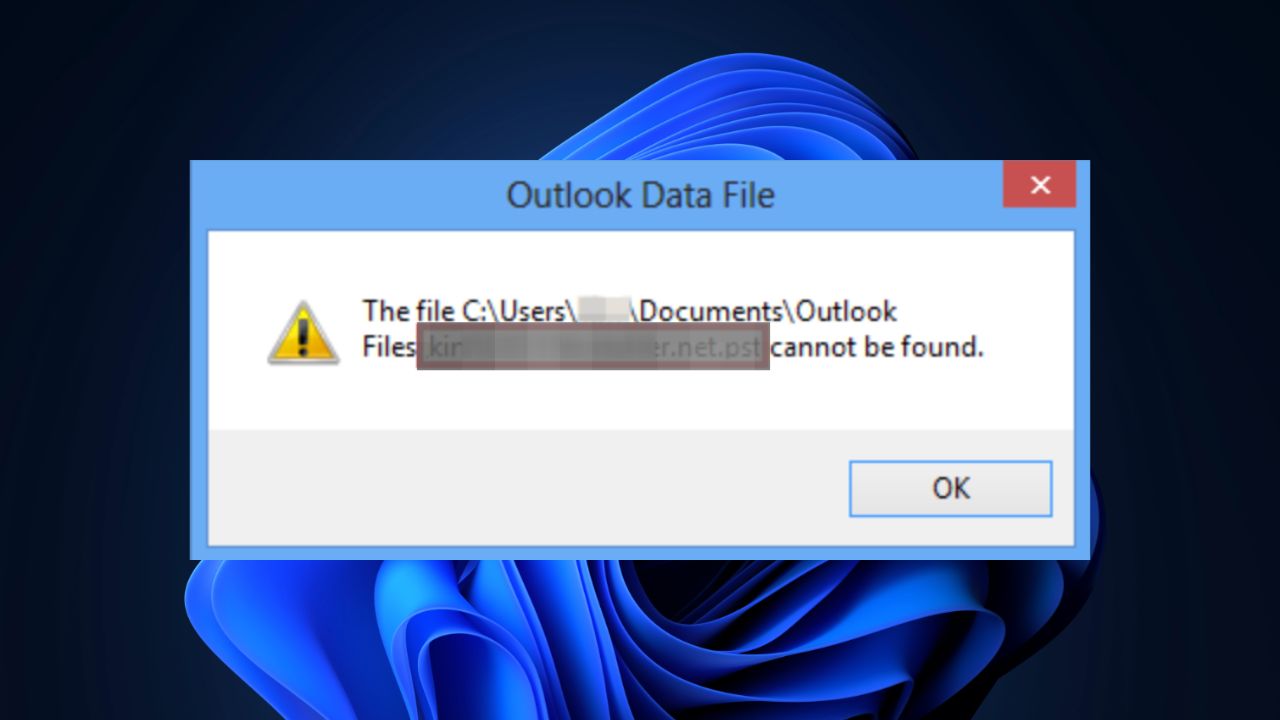
This mismatch causes the “file not found” error or calendar sync failure issue due to a corrupt Outlook data file. In such cases, using a reliable Outlook PST repair tool can help restore missing data paths and fix issues that occur during the transition. In this article, we will see how to resolve this issue in Outlook.
Common Reasons for “File not Found” Error and Sync Failure Issue
Upgrading from a Personal to a Business account can sometimes confuse Outlook, resulting in errors and sync failures. Let’s look at the most common causes behind this issue:
- Profile configuration mismatch
- Incorrect data file path (PST)
- Corrupted Outlook data file
- Incomplete data migration
- Server sync conflict
Solutions to Resolve ‘File not Found’ Error and Sync Failure Issue in Outlook
Below, we have provided step-by-step solutions to resolve the issue.
1. Verify and Reconfigure Outlook Profile
After upgrading, Outlook may still be using the old Personal account profile. This mismatch can prevent it from locating your calendar data. You can create a new profile to resolve the issue. Here are the steps:
Close Outlook completely and open the Control Panel.
Click on User Accounts and select Mail (Microsoft Outlook).
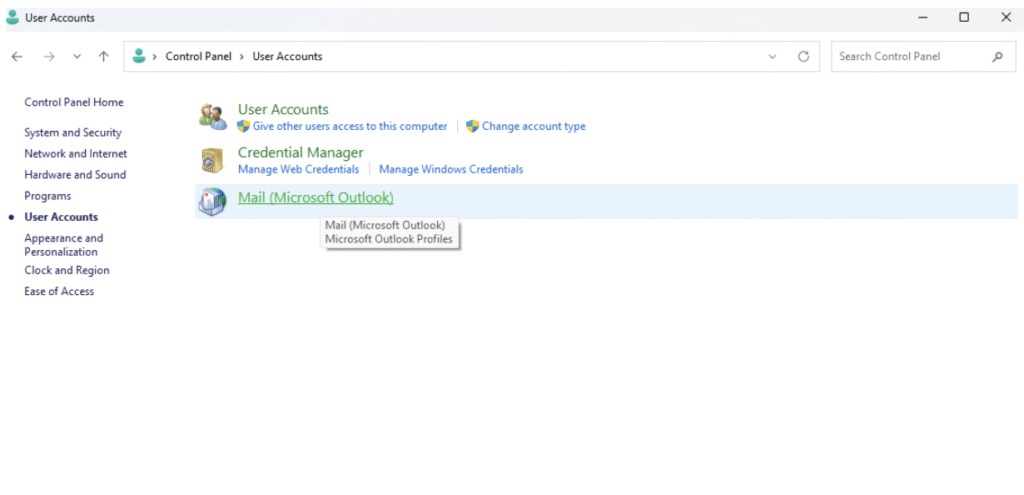
Now, click on Show Profiles. You will see the list of old Outlook profiles.
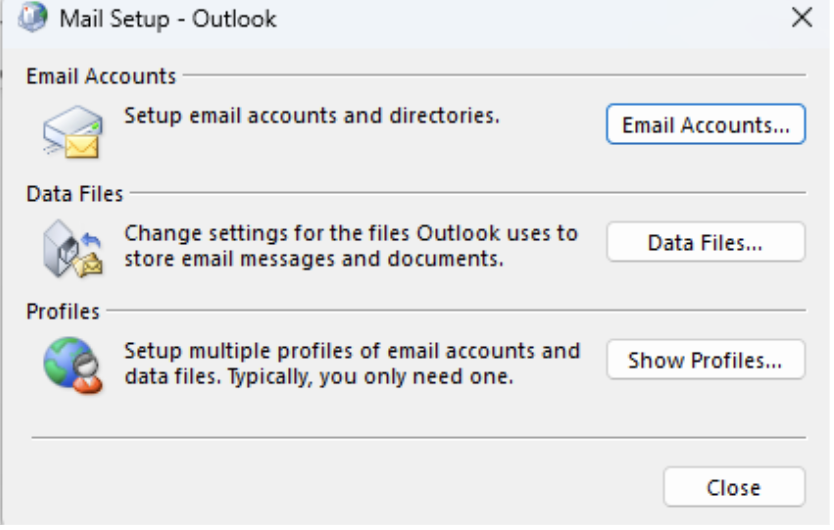
After verifying the Outlook profile, click on Add to create a new profile.
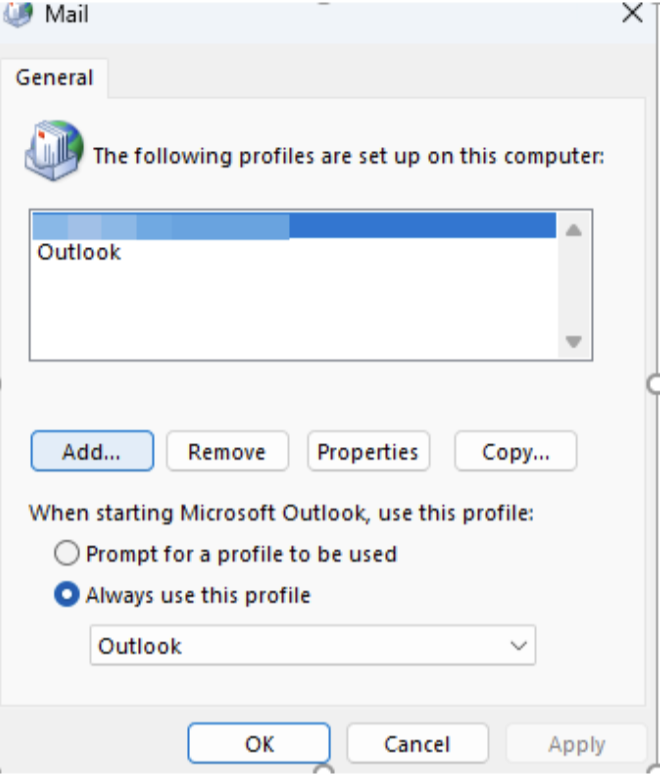
Enter the Profile Name, e.g., Business Account, and click OK.
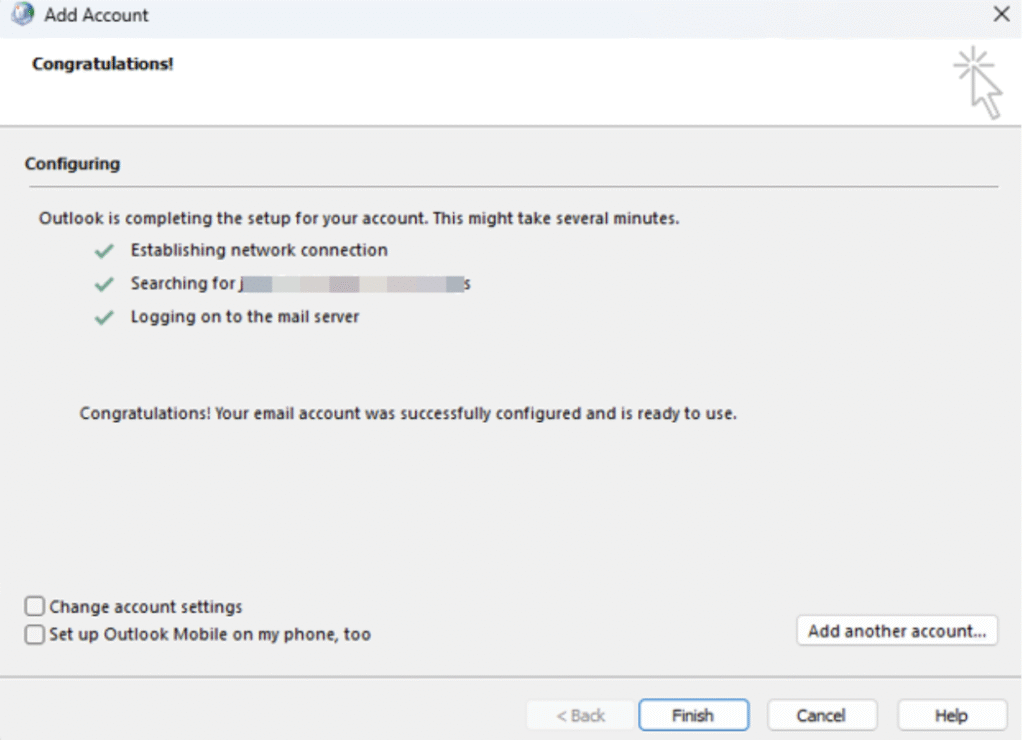
Follow the prompts to set up your business account and click on Next. Click Finish once the setup is complete.
Now set the new profile as the default by selecting Always use this profile in the ShowProfile window. Click on Apply > OK.
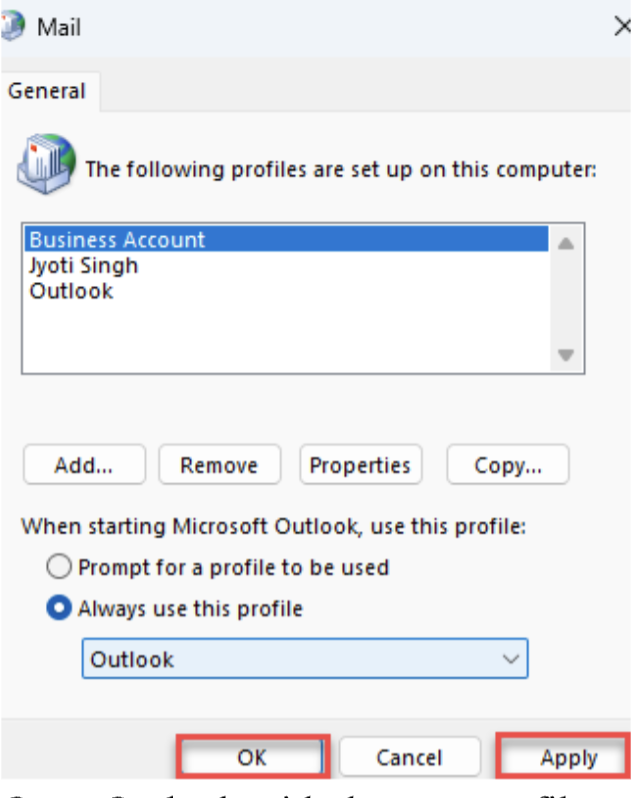
Open Outlook with the new profile and check if the issue is resolved.
2. Check and Change Account Configuration
Personal and business accounts are completely operated in different Microsoft infrastructures. If Outlook tries to use the old environment, it can’t properly communicate with your new Business account, causing sync failure or missing data. You can check and change your account configuration to fix the issue. Follow the steps given below to do this:
In Outlook, go to File > Account Settings > Account Settings.
Now, you will see a list of email accounts configured in your Outlook.
Check and ensure that your business account is listed, active, and configured correctly with the proper email address.
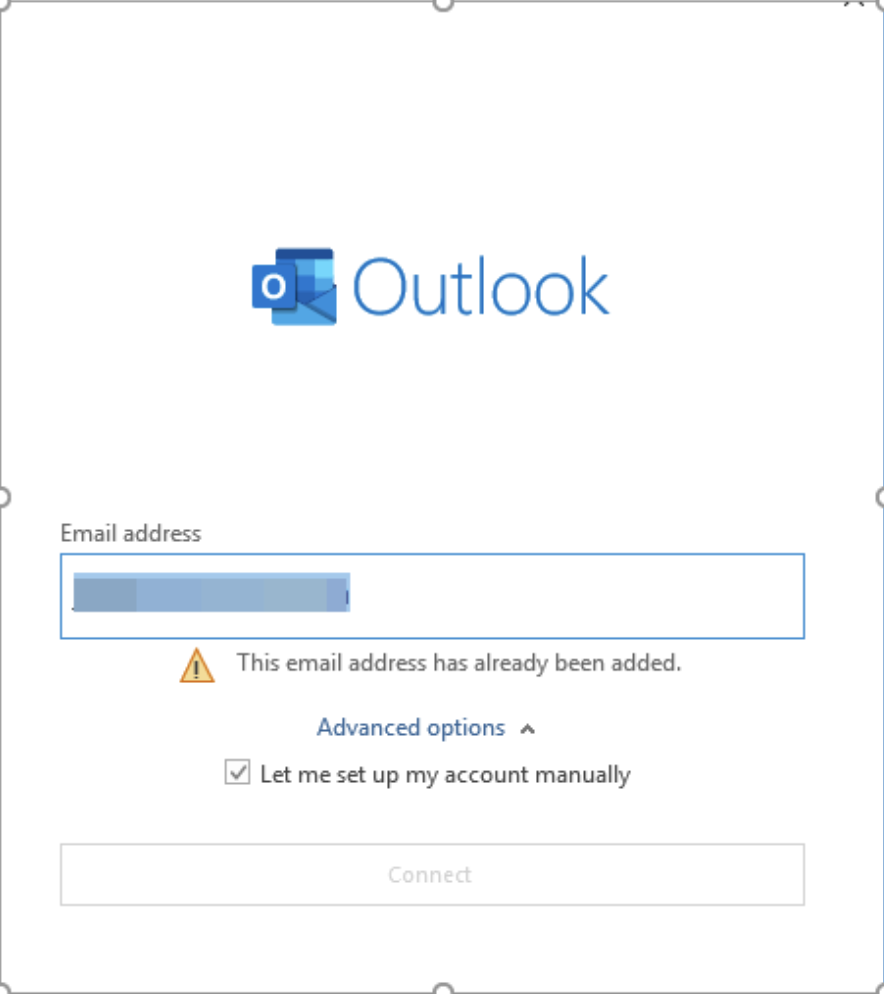
If your business account is missing, then click on New in the Account Settings window and add your business account email address and password.
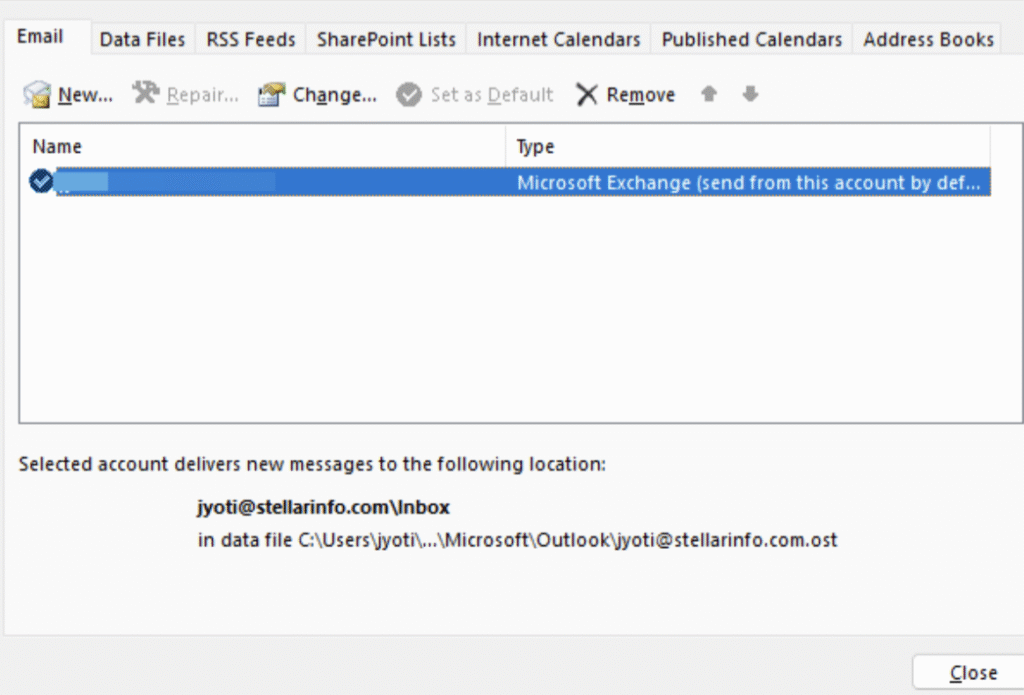
If your personal account is still listed in Outlook, select it and click on Remove.
Note: Make sure any important data is backed up before removing the account.
Now, pick your Outlook business account and click on Set as Default
Restart your Outlook and check if the issue is resolved.
4. Check Data File Path (PST)
After the upgrade, Outlook might still point to the old PST file from your Personal account. If the file is missing, moved, or renamed, the application can’t find your calendar data, which can cause the “file not found” error. You can verify and correct the file path. Follow the instructions given below to verify and amend the data file path:
Go to File > Account Settings > Accounts Settings in Outlook.
Click on the Data File tab to see the Outlook data file (PST) path associated with your Outlook profile.
Open the file location in the File Explorer.
If the PST file is missing, then search for it on your PC or check the common folders.
If you found that the PST file is stored at a different location or the PST file is moved, then go to File > Account Settings > Data Files > Add.
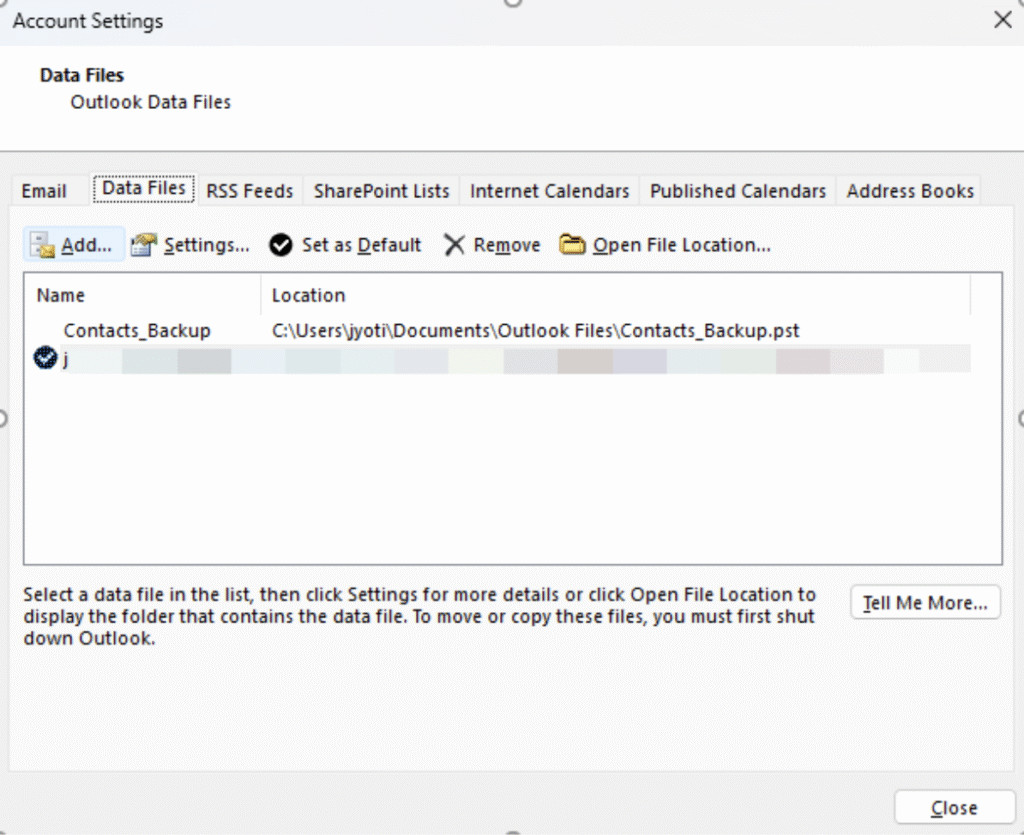
Click on Browse to add it and set it as Default.
If you are using a POP3 account, go to File > Account Settings > Email > Change Folder and select the correct Inbox inside the active PST.
Restart Outlook and refresh the calendar to check if the issue is resolved.
5. Repair Outlook Data File
Sometimes, the migration or upgrade process can partially corrupt your PST file. Corruption prevents Outlook from reading the calendar data properly. You can run the Inbox Repair tool or ScanPST to repair the corrupt file. Here’s how to run this tool:
Close Outlook completely and locate ScanPST on your system (location may vary depending on Outlook version).
Double-click on ScanPST to run the tool.
Click on Browse, select the PST file, and click on Start.
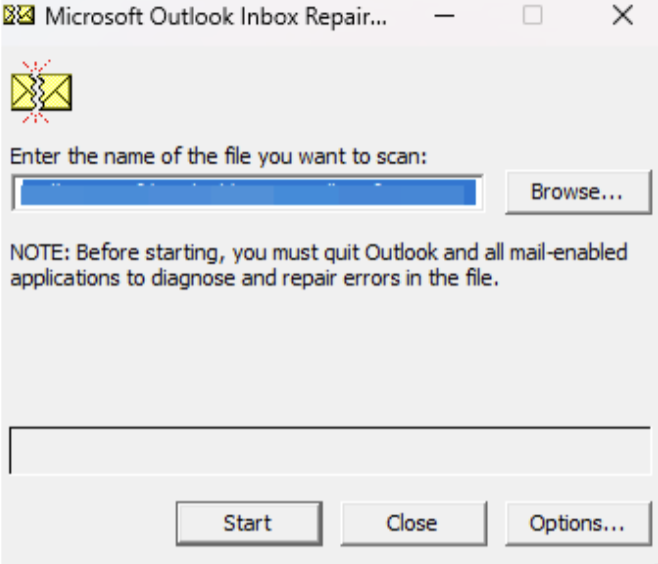
Make sure you have ticked the Make backup of scanned file before starting to repair option.
Now, click on Repair.
Open Outlook and check if the problem is resolved. If the issue persists, run ScanPST again.
Microsoft’s integrated tool – ScanPST can fix damaged or corrupted PST files but it might be required to run it multiple times to completely fix the file. Additionally, it might be unable to fix badly corrupted or damaged PST files. The procedure can also be rather lengthy.
A more powerful PST repair tool, such as Stellar Repair for Outlook would be an apt choice to overcome the above tool’s limitations. This tool can swiftly and effectively repair even highly corrupted PST files without any issue. It saves the repaired PST file data to a new healthy file, which you can import into your Outlook account. Moreover, it maintains data integrity and folder structure after the repair.
Conclusion
As explained in this article, the “File not found” error or calendar sync failure can occur for several reasons. To address and resolve the issue, follow the solutions outlined above. In case the issue is with the PST file, you can repair it using the ScanPST tool. If this tool fails to bring the desired results, the apt solution is to use Stellar Repair for Outlook – an advanced tool to repair severely corrupted PST files of any size and Outlook version.