

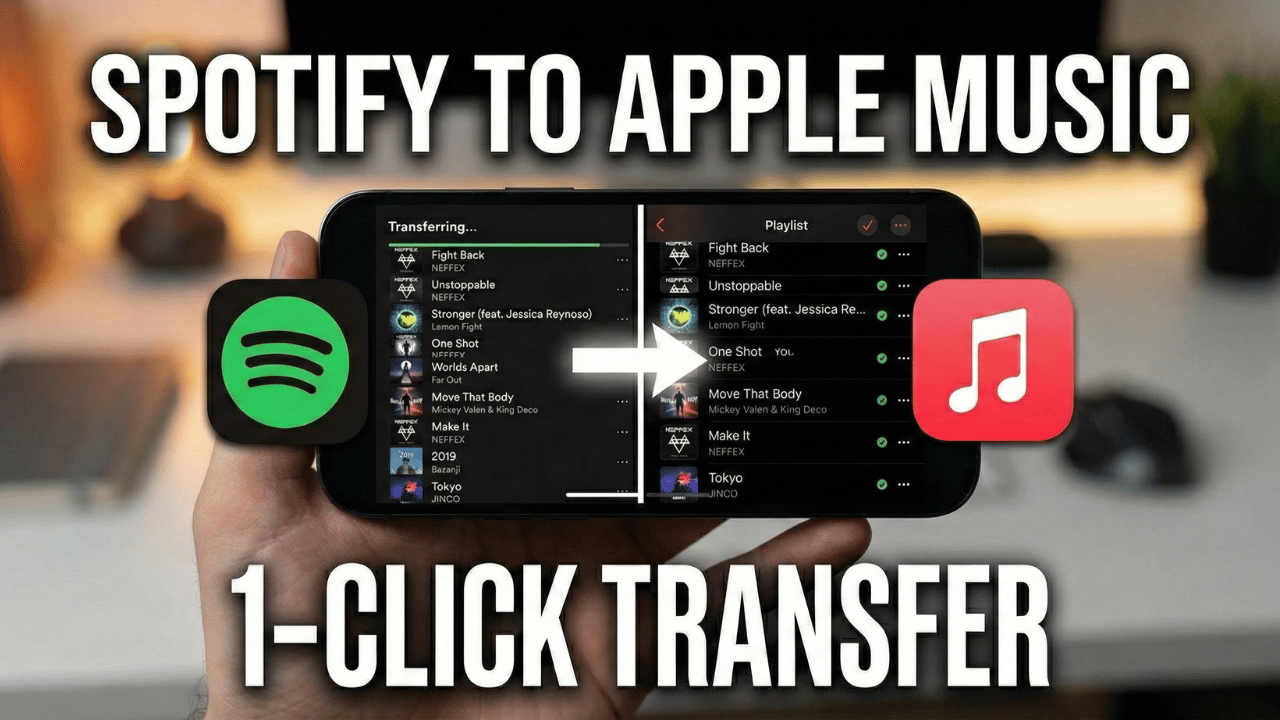
Switching streaming services often comes with one major headache: losing your carefully curated playlists. Officially, there is no direct way to move your music library from Spotify to Apple Music.
However, you don’t have to rebuild your library manually. In this guide, we will use a free application called SongShift to automate the process. Here is how to do it.
Video Tutorial
Prerequisites
Before we begin, ensure you have the following:
- An active Apple Music subscription (required for the transfer to work).
- The Spotify app installed on your iPhone.
- SongShift installed from the App Store.
Step 1: Set Up SongShift and Connect Services
- Head over to the App Store, search for SongShift, and install it on your iPhone.
- Open the app. On the “Welcome” screen, you will see a list of available services. You need to connect both Apple Music and Spotify.
- First, tap on Apple Music.
- Tap Continue and allow any permissions requested to link your account.
Important Note: “Sync Library” Error
If you see a message stating that the Music Sync Library feature is OFF, you must enable it before proceeding:
- Open your iPhone Settings.
- Scroll down and tap on Apps (or locate Music directly in older iOS versions).
- Find and tap on Music.
- Under the Library section, toggle ON the Sync Library option.
Once enabled, go back to SongShift and tap Apple Music > Continue again to link it successfully.
- Next, tap on Spotify from the services list.
- This will open the Spotify app authorization page. Review the access permissions and tap Agree.
- Once both services are connected, tap Continue and then Get Started.
Step 2: Transfer Your Playlist
Now that your accounts are linked, you can start moving your music.
- Tap the Plus (+) icon in the upper right corner of the screen.
- Select your Source. Since we are moving from Spotify, tap on Playlist under the Spotify section.
- You will see a list of your Spotify playlists. Select the specific playlist you want to transfer.
- Note: The free plan allows you to export one playlist at a time. If you want to transfer unlimited playlists simultaneously, you will need the Premium plan. For most users, the free plan is sufficient.
- After selecting the playlist, tap Confirm.
- Next, select your Destination. Tap on Apple Music.
- Review the transfer details on the screen. If everything looks correct, tap Start Shift.
Step 3: Review and Confirm Matches
SongShift will now begin matching the songs from your Spotify playlist to the Apple Music catalog. This usually takes a few seconds depending on the size of your playlist.
- Once processing is complete, tap the playlist to Review Matches.
- SongShift will show you successful matches. If a song wasn’t found, you can try to Re-match it manually or simply Ignore it.
- Once you are satisfied with the list, tap Confirm Matches.
Step 4: Verify the Transfer
You can now verify that the transfer was successful.
- Open the Apple Music app on your iPhone.
- Go to the Library tab and select Playlists.
- You should see your Spotify playlist listed there with all your songs ready to play.
That’s all there is to it! If you found this guide helpful, let us know in the comments.

![[Solved] Apple Watch Pausing Workout Automatically? 4 Fixes (2026)](https://geekermag.com/wp-content/uploads/2026/01/apple-watch-workout-pause-after-11-seconds--450x253.jpg "[Solved] Apple Watch Pausing Workout Automatically? 4 Fixes (2026)")