


Microsoft is currently undertaking a massive security update that affects how millions of Windows devices boot up. They are refreshing the Secure Boot Root of Trust, replacing the aging 2011 certificate with a new standard: the Windows UEFI CA 2023.
This update is critical for future-proofing your system against modern bootkits and rootkits. But has your device received it yet?
In this guide, we will show you how to check if the new Windows UEFI CA 2023 certificate is applied to your system’s Secure Boot database using a simple PowerShell command.
Watch the Video Guide
Why This Update Matters
For over a decade, Windows PCs have relied on a “Root of Trust” certificate issued in 2011. While this standard has served us well, the threat landscape has evolved. To ensure that the boot process remains secure for the next decade, Microsoft and its partners are rolling out the Windows UEFI CA 2023.
Eventually, this new certificate will be required to boot widely used operating systems and tools. Knowing if you have it helps you understand if your firmware is up-to-date and ready for the future.
How to Check Your Secure Boot Certificate Status
You don’t need third-party tools to check this; you can verify it directly from Windows 10 or Windows 11 using PowerShell.
Step 1: Open PowerShell as Administrator
Accessing UEFI variables requires elevated privileges.
- Right-click the Start button.
- Select Terminal (Admin) or Windows PowerShell (Admin).
- Click Yes on the User Account Control prompt.
Step 2: Run the Verification Command
Copy and paste the following command into the PowerShell window and hit Enter:
PowerShell
([System.Text.Encoding]::ASCII.GetString((Get-SecureBootUEFI db).bytes) -match 'Windows UEFI CA 2023')
Interpreting the Results
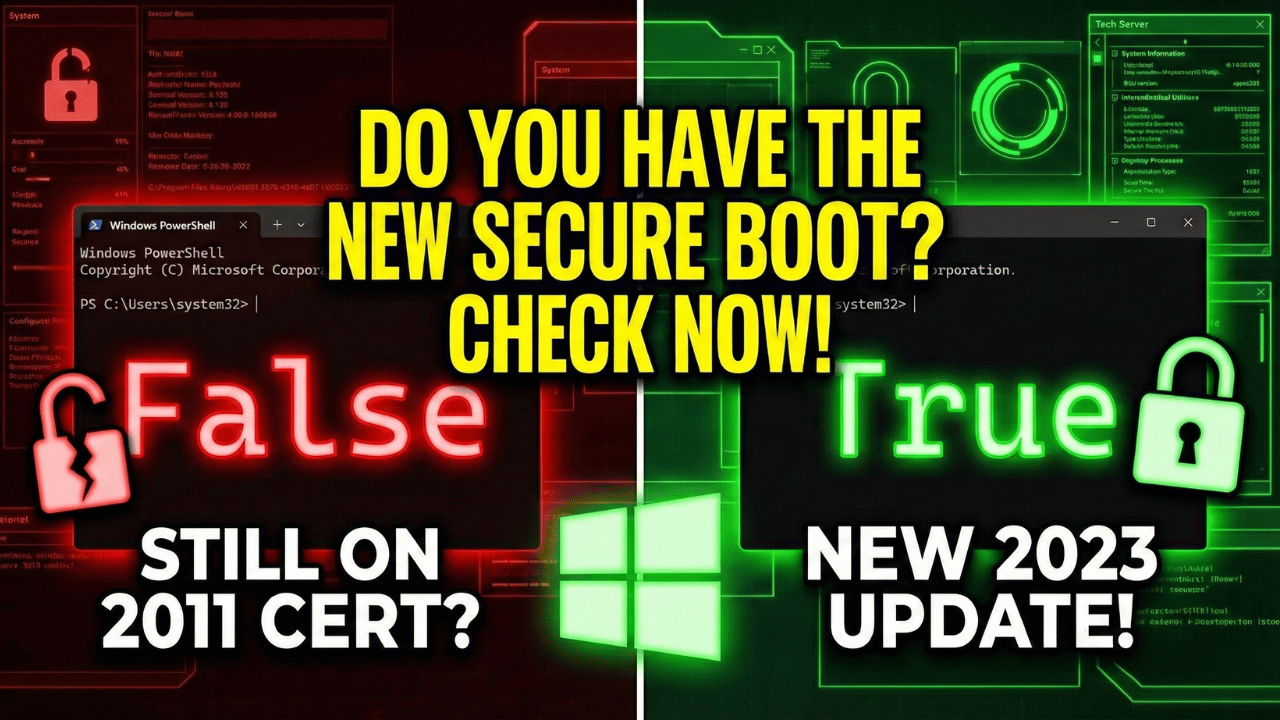
After running the command, you will see a simple output: True or False.
Result: True
Status: Updated.
Congratulations! Your system’s Secure Boot database (DB) already contains the new “Windows UEFI CA 2023” certificate. Your device is fully updated and ready for the upcoming transition. You do not need to take any further action.
Result: False
Status: Not Updated (Yet).
Don’t panic! If you see False, it simply means your system is still using the older 2011 certificate. This is currently the most common result for most users.
Microsoft is rolling this update out in very slow phases to prevent compatibility issues with older hardware. A “False” result does not mean your PC is insecure right now; it just means it hasn’t transitioned to the new standard yet.
What to Do If You Get “False”
If you want to try and force the update, here are a few things you can check:
- Check Optional Updates:
- Go to Settings > Windows Update > Advanced Options > Optional Updates.
- Look for any pending Firmware or BIOS updates from your manufacturer. These often contain the new certificate keys.
- Look for KB5012170:
- Occasionally, this certificate is bundled with the Secure Boot DBX update (KB5012170). Check if this update is available for your system.
- Check BIOS Settings:
- Reboot into your BIOS/UEFI.
- Look for a setting named “UEFI CA Verification” or “Allow Microsoft 3rd Party UEFI CA” and ensure it is Enabled.
If no updates are available, the best course of action is simply to wait. Microsoft will eventually push this update to compatible devices automatically over the coming months.
Did you get a True or False result? Let us know in the comments below!