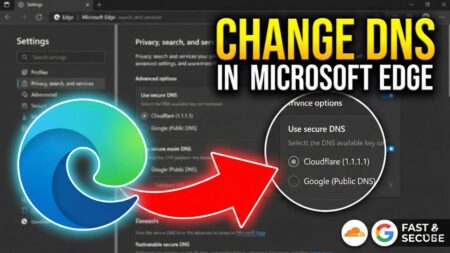




If you are looking for a way to improve your browsing privacy and speed without changing the network settings of your entire computer, Google Chrome has a built-in feature that can help. It is called Secure DNS (or DNS over HTTPS).
In this video, I will show you how to enable Secure DNS and use a custom DNS provider directly within the Google Chrome browser settings.
What is Secure DNS?
Normally, your browser uses the DNS server provided by your Internet Service Provider (ISP). While this works, it isn’t always the fastest or most secure option.
By enabling Secure DNS in Chrome, you can encrypt your DNS lookups and switch to faster, privacy-focused providers like Cloudflare (1.1.1.1), Google Public DNS (8.8.8.8) or OpenDNS. This setting only affects Chrome, leaving your other apps and system settings untouched.
Watch the Video Tutorial
Steps to Change DNS Settings in Google Chrome
If you prefer to read the steps, here is how you can set up Custom DNS in Chrome:
- Open Settings: Click on the three-dot menu icon in the top-right corner of Chrome and select Settings.
- Go to Security: In the left sidebar, click on Privacy and security, and then click on Security in the main window.
- Locate Secure DNS: Scroll down to the Advanced section until you find the setting labeled “Use Secure DNS”.
- Enable the Feature: Toggle the switch to the ON position.
- Choose Your Provider:
- Select the option “With”.
- Click the dropdown menu (which usually says “Custom” or your current provider).
- Choose a pre-configured provider like Google (Public DNS) or Cloudflare (1.1.1.1).
- Optional: If you have a specific custom DNS URL, select “Custom” and paste the link provided by your DNS service.
Once you select the provider, the changes are applied instantly. You do not need to restart the browser.
Why Should You Do This?
- Privacy: It encrypts your DNS queries so your ISP cannot easily track which websites you are visiting.
- Speed: Public DNS servers like Cloudflare are often faster than the default ones provided by ISPs.
- Access: It can sometimes help resolve “DNS Probe Finished” errors or access sites that might be blocked by local DNS filters.
If you have any questions or run into issues setting this up, let me know in the comments below!