



Just like Google Chrome, Microsoft Edge has a built-in feature that allows you to change your DNS provider without altering your entire computer’s network settings. This feature is called Secure DNS (or DNS over HTTPS).
In this video, I will guide you through the steps to enable Secure DNS and set up a custom DNS provider (like Cloudflare or Google) directly inside the Microsoft Edge settings.
What is Secure DNS in Edge?
By default, your browser uses the DNS server provided by your Internet Service Provider (ISP). Enabling Secure DNS in Edge encrypts your DNS queries, which improves privacy by preventing your ISP from tracking the websites you visit. It can also boost browsing speed if you switch to a faster provider.
Watch the Video Tutorial
Steps to Change DNS Settings in Microsoft Edge
If you prefer to read the instructions, here is how to configure Custom DNS in Edge:
- Open Settings: Click on the three-dot menu icon (
...) in the top-right corner of the Edge browser and select Settings. - Go to Privacy: In the left sidebar, click on Privacy, search, and services.
- Scroll Down: Scroll down the page until you find the Security section.
- Locate the Setting: Look for the option labeled “Use secure DNS to specify how to lookup the network address for websites”.
- Choose a Provider:
- Select the option “Choose a service provider”.
- Click on the box that appears (usually empty or says “Enter custom provider”).
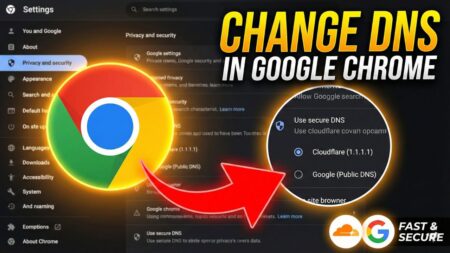
- Select a pre-set provider like Cloudflare (1.1.1.1), Google (Public DNS), OpenDNS, or CleanBrowsing.
- Alternatively, You can enter a custom HTTPS URL if you have a specific private DNS server you wish to use.
The changes are saved automatically and applied immediately.
Why Use Custom DNS in Edge?
- Enhanced Privacy: Prevents third parties from snooping on your browsing history via DNS lookups.
- Better Performance: Services like Cloudflare are often faster than standard ISP servers.
- Troubleshooting: Can help fix “This site can’t be reached” errors related to DNS resolution.
If this tutorial helped you speed up your browser or fix a connection issue, let me know in the comments!