


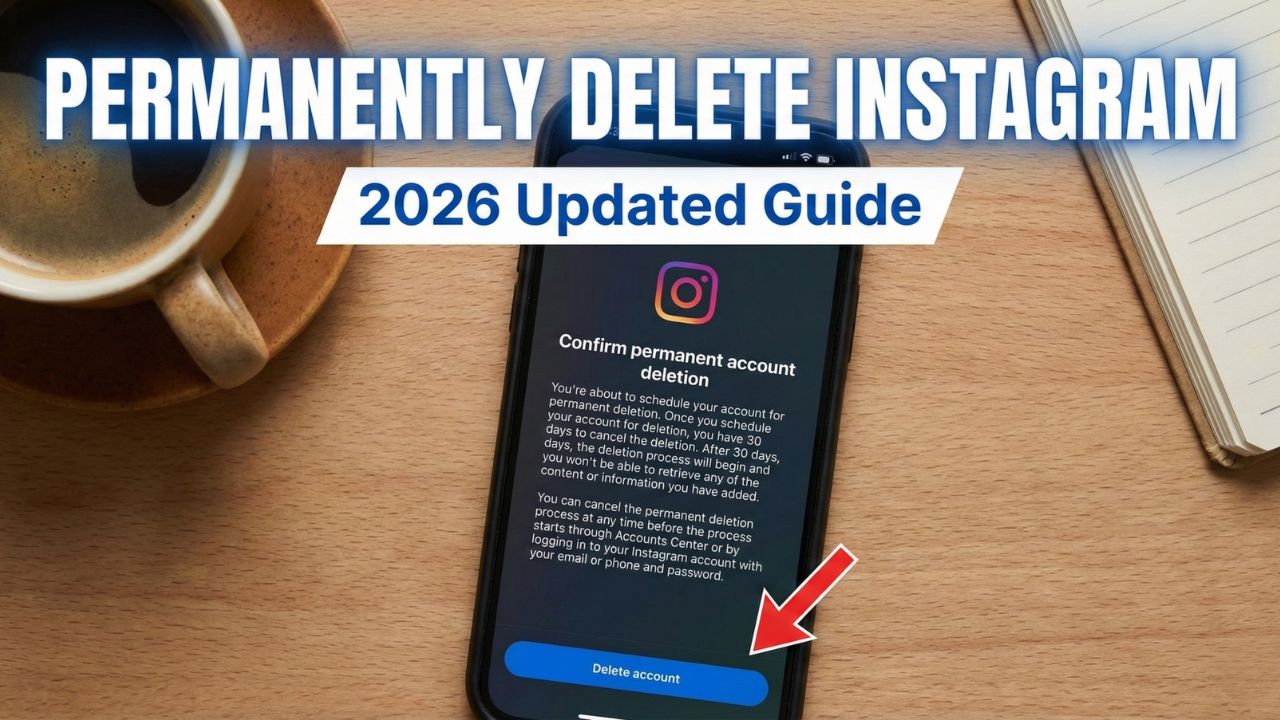
Are you tired of the endless scrolling and ready to leave Instagram for good? If you have tried to find the “Delete” button on your iPhone, you probably noticed that Instagram hides it deep inside the settings menu.
Deleting your account is different from deactivating it. Deactivating just hides your profile temporarily, while deleting erases your photos, videos, followers, and likes forever.
In this video, I show you exactly where to find the deletion option on the Instagram iOS app and how to permanently remove your account.
Important: Before You Delete
Once you complete this process, you cannot get your account back.
- Backup Your Data: I highly recommend downloading a copy of your photos and data before hitting delete.
- 30-Day Grace Period: After you request deletion, Instagram waits 30 days before permanently wiping your data. If you log back in during this time, the deletion request is cancelled.
Step-by-Step Guide (iOS)
Step 1: Open Accounts Center
- Launch the Instagram app on your iPhone.
- Tap your Profile icon in the bottom right corner.
- Tap the Menu (three lines) in the top right corner.
- Select Settings and privacy.
- Tap on Accounts Center (usually at the very top).
Step 2: Navigate to Account Ownership
- Scroll down to the “Account settings” section.
- Tap on Personal details.
- Select Account ownership and control.
Step 3: Select Deletion
- Tap on Deactivation or deletion.
- Select the Instagram account you want to delete.
- Crucial Step: The app defaults to “Deactivate.” You must select the bottom option: Delete account.
- Tap Continue.
Step 4: Confirm and Delete
- Select a reason for leaving (e.g., “Too distracting”) and tap Continue.
- Enter your Password to verify it is you.
- Finally, tap the red button: Delete Account.
Can I Recover My Account?
If you change your mind, you have 30 days to log back in and cancel the deletion. After 30 days, your account and all its content will be gone forever.
Conclusion
While Instagram makes it a bit tricky to find, the process is straightforward once you know where to look in the Accounts Center.
- Did this guide help you? Let me know in the comments below!
- More Social Media Tips: Check out our guide on [How to Delete Facebook Permanently].