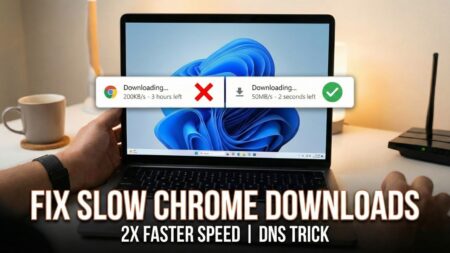


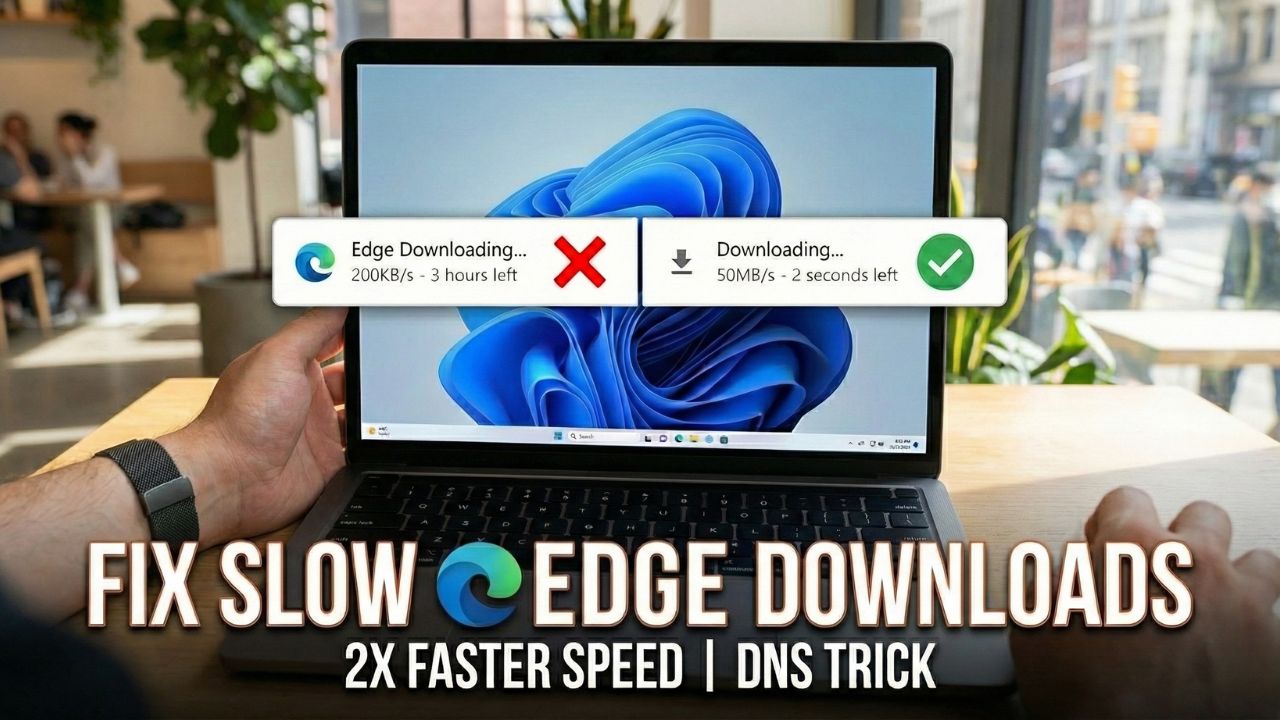
Are you facing slow download speeds while downloading files from the internet? While using the browser, slow downloads can be frustrating, especially when you have a high-speed internet plan.
In this guide, we will show you two effective methods to accelerate your downloading speed by enabling Parallel Downloading and changing your DNS settings.
You can watch the video tutorial below or follow the step-by-step instructions.
Fix Slow Download Speed in Microsoft Edge
If Chrome is your primary browser, follow these steps to boost your download speeds.
1. Enable Parallel Downloading
This is an experimental feature that breaks large files into smaller parts and downloads them simultaneously, significantly increasing speed.
- Open Google Chrome.
- In the address bar, type the following command and hit Enter:
edge://flags - This will open the Chrome Experiments page. In the search box, type Parallel downloading.
- You will see the setting in the results. Click the drop-down menu next to it and change it from Default to Enabled.
- Click the Restart button at the bottom to restart Chrome and apply the changes.
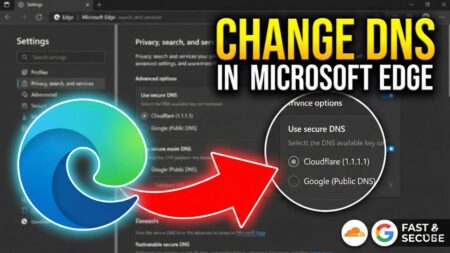
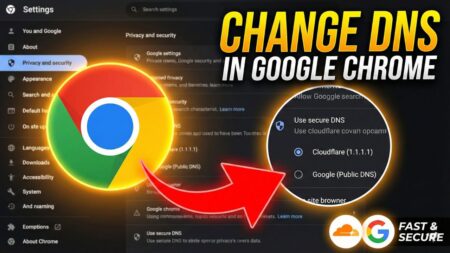
2. Change DNS Settings
Sometimes, your ISP’s default DNS server can be slow. Switching to a public DNS can help.
- Click on the three dots icon in the upper right corner and select Settings.
- On the left sidebar, click on Privacy, search, and services.
- Scroll down to the Security section.
- Locate Use secure DNS to specify how to lookup the network address for websites. Ensure this is toggled ON.
- Select the radio button for Choose a service provider.
- Click inside the text box (or the drop-down arrow) and select Google (Public DNS).
- Test your download speed. If you don’t see an improvement, switch to Cloudflare (1.1.1.1).
Important Notes
- Switch DNS Providers: Not all DNS providers work perfectly for every location. If Google DNS doesn’t help, switch to Cloudflare, or vice versa, to see which works best for you.
- Check Your ISP Plan: Keep in mind that these browser tweaks can only optimize the connection available to you. They cannot exceed the speed limit set by your Internet Service Provider (ISP). Always perform a speed test (like Ookla) to ensure you are actually getting the bandwidth you pay for.
Did this guide help you improve your download speeds? Let us know in the comments below!