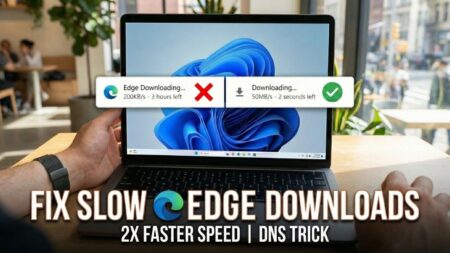


Are you frustrated by slow download speeds even though you have a fast internet connection? It’s a common issue, but often the bottleneck isn’t your ISP—it’s the default settings in your browser.
In this guide, I will show you how to significantly boost your download speeds in both Google Chrome by tweaking two hidden settings: Parallel Downloading and Secure DNS.
How to Increase Download Speed in Google Chrome
If Chrome is your primary browser, follow these steps to optimize it for faster downloads.
Step 1: Enable Parallel Downloading
Parallel downloading enables the browser to establish multiple connections to download a single file in parts, thereby drastically increasing speed.
- Open Google Chrome.
- In the address bar, type the following and hit Enter:
chrome://flags - This will open the Chrome Experiments page. In the search box, type Parallel downloading.
- You will see the “Parallel downloading” flag. Click the drop-down menu next to it and change it from Default to Enabled.
- Click the Relaunch button at the bottom to apply the changes.
Step 2: Change DNS Settings
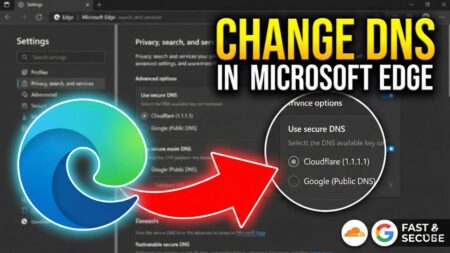
Switching to a faster DNS provider like Google or Cloudflare can improve connection stability and speed.
- Click on the three dots icon in the upper right corner of Chrome.
- Select Settings from the menu.
- On the left sidebar, click on Privacy and security, then select Security on the right side.
- Scroll down to the “Advanced” section and locate Use Secure DNS.
- Make sure the toggle is switched ON.
- Select With Custom (or “Select DNS provider”) and choose Google (Public DNS) from the drop-down menu.
Quick Tip: Try downloading a file. If you don’t notice a speed improvement, go back to this setting and switch the provider to Cloudflare (1.1.1.1).
Important Notes
- ISP Limitations: Remember that these settings optimize your browser, but they cannot exceed the maximum speed provided by your Internet Service Provider (ISP). Always perform a general internet speed test (like Speedtest.net) to ensure you are getting the bandwidth you pay for.
- Switching DNS: Fast DNS servers can vary by location and time. If you notice speeds dropping again in the future, try toggling between Google and Cloudflare to see which is performing better at that moment.
I hope this helps you fix those slow download speeds! Let me know in the comments if this worked for you.