
Close Menu

    Subscribe to Updates

    Get the latest creative news from FooBar about art, design and business.

    What's Hot
    Windows 11 Is Tracking You for Ads? Disable These 5 Settings

    Windows 11 Is Tracking You for Ads? Disable These 5 Settings

    August 19, 2026
    Windows PC Running Slow? Here’s How to Clear RAM Cache

    Windows PC Running Slow? Here’s How to Clear RAM Cache

    August 10, 2026
    Chrome Downloading AI Files? How to Find & Delete Them

    Chrome Downloading AI Files? How to Find & Delete Them

    August 9, 2026
    Facebook X (Twitter) Instagram
    • About
    • Contact
    • Career
    Facebook X (Twitter) Instagram Pinterest LinkedIn WhatsApp
    Geeker Mag.
    • PC & Mobile
      1. Windows
      2. Browser
      3. Linux
      4. Office 365 & Web
      5. Hardware
      6. Mobile Apps
      7. View All
      Windows 11 Is Tracking You for Ads? Disable These 5 Settings

      Windows 11 Is Tracking You for Ads? Disable These 5 Settings

      August 19, 2026
      How to Install Windows 11 25H2 on Unsupported PC (2026 Guide)

      How to Install Windows 11 25H2 on Unsupported PC (2026 Guide)

      March 2, 2026
      How to Check if Your PC has the New Windows UEFI CA 2023 Secure Boot Certificate

      How to Check if Your PC has the New Windows UEFI CA 2023 Secure Boot Certificate

      February 17, 2026
      How to Fix Slow Internet on Windows 11 (Change DNS Settings)

      How to Fix Slow Wifi- Internet Speed on Windows 11 (2026 Guide)

      January 12, 2026
      Chrome Downloading AI Files? How to Find & Delete Them

      Chrome Downloading AI Files? How to Find & Delete Them

      August 9, 2026
      How to Fix Slow Download Speed in Microsoft Edge

      How to Fix Slow Download Speed in Microsoft Edge

      January 10, 2026
      fix slow download speed chrome 1

      How to Fix Slow Download Speeds in Google Chrome

      January 10, 2026
      how to use custom dns in microsoft edge

      How to Change DNS in Microsoft Edge Use Custom DNS (Google & Cloudflare)

      January 7, 2026
      Linux Security In-Depth: 5 Essential Steps You Need to Take

      Linux Security In-Depth: 5 Essential Steps You Need to Take

      May 17, 2023
      How to Resolve Outlook “File Not Found” Error and Calendar Sync Failure After Office 365 Plan Upgrade

      How to Resolve Outlook “File Not Found” Error and Calendar Sync Failure After Office 365 Plan Upgrade

      November 27, 2025
      🎥 How to Create a Microsoft Account in 2025 – Watch the Step-by-Step Video

      How to Create a Microsoft Account in 2025 – Detailed Video

      May 5, 2025
      How to Delete Your Microsoft Account Permanently - 2018

      How to Delete Your Microsoft Account Permanently in 2025

      May 5, 2025
      How to Make Your Existing Microsoft Account Passwordless (Step-by-Step Guide)

      How to Make Your Existing Microsoft Account Passwordless (Step-by-Step Guide)

      May 3, 2025
      Check for POPCNT CPU Instructions Before Installing NVIDIA Drivers to Avoid BSOD

      Check for POPCNT CPU Instructions Before Installing NVIDIA Drivers to Avoid BSOD

      August 5, 2024
      How to Check What Motherboard Do I Have in Windows 11/10

      How to Check What Motherboard Do I Have in Windows 11/10

      January 17, 2024
      8 Best SSDs for Laptops 2023 (256 GB to 2TB)

      8 Best NVMe M.2 SSD for Gaming Laptop 2023 (256 GB to 2TB)

      April 29, 2023
      best gaming graphics cards for pc

      Top 8 Graphics Cards for PC Gamers

      September 29, 2021
      Spotify AI Playlist feature.

      Is Spotify’s AI Playlist Missing or Not Showing? Here’s What You Need to Know

      April 24, 2024
      How to set Microsoft Copilot as default assistant on Android

      You can set Microsoft Copilot as Default Digital Assistance on Android

      March 5, 2024
      The Best 5 AI Photo Editing Apps of 2024

      5 Best AI Photo Editing Apps Android & iOS – 2024

      January 3, 2024
      How to View Wifi Password on Android Phone

      How to View Wifi Password on Android Phone

      October 12, 2023
      How to Fix iPhone Keyboard Lagging Issue After iOS 18 Update

      How to Fix iPhone Keyboard Lagging Issue After iOS 18 Update

      November 15, 2024
    • Internet
      1. Web Services
      2. Social Media
      3. Useful Sites
      4. G Suite
      5. View All
      How to Remove Background in Canva (Free & Pro Methods)

      How to Remove Background in Canva (Free & Pro Methods)

      April 30, 2025
      4k video downloaders failed to download youtube videos

      4K Video Downloader Failed to Download Videos (April 2025)

      April 26, 2025
      YouTube Videos Stuck at 144p? YouTube Confirms Issue

      YouTube Videos/Shorts Stuck at 144p? YouTube Confirms Issue

      March 20, 2025
      YouTube desktop new design.

      YouTube is testing a redesigned Watch Page for Desktop (Again)

      June 8, 2024
      delete facebook account

      How to Delete Facebook Account Permanently (2026 Guide)

      January 7, 2026
      How to Delete Instagram Account Permanently (2026)

      How to Delete Instagram Account Permanently (2026)

      January 7, 2026
      How to Create Stunning Visuals for Instagram in 2023

      How to Create Stunning Visuals for Instagram in 2023

      March 23, 2023
      How to Open Facebook app links in Chrome or Edge

      How to Open Facebook App Links in Android’s Chrome or Edge Browser

      March 8, 2022
      5 Safe Sites to Download Rainmeter Skins in 2024

      5 Safe Sites to Download Rainmeter Skins in 2024

      January 18, 2024
      websites like thinkgeek 2019

      18 Best Websites like ThinkGeek (Alternatives ) 2024

      January 17, 2024
      best search engine for finding people online

      11 Best Free People Search Engines to Find a Person – 2024

      January 9, 2024
      best free movie streaming sites 2018

      18 Best Free Online Movie Streaming Sites 2024

      January 9, 2024
      Gmail's New "Manage Subscriptions" Feature: An Easy Way to Declutter Your Inbox

      Gmail’s New “Manage Subscriptions” Feature: An Easy Way to Declutter Your Inbox

      April 24, 2025
      help me write gmail

      How to Disable Gemini “Help Me Write” in Gmail

      January 21, 2025
      Google is sunsetting gmail

      Is Gmail Shutting Down in 2024? Truth Explained

      February 25, 2024
      Gmail @Mention Not Working - Fix 2023

      Gmail @Mention Not Working – Fix 2023

      October 6, 2023
      Testing your internet in a new way: Simple tools for complete picture

      Testing your internet in a new way: Simple tools for complete picture

      January 16, 2026
      Vidnoz AI: Revolutionizing Video Creation with AI in 2024

      Vidnoz AI: Revolutionizing Video Creation with AI in 2024

      May 22, 2024
      How to Get Blooket Hacks in School Chromebook 2024

      How to Get Blooket Hacks in School Chromebook 2024

      January 17, 2024
      10 The Best Discord Servers to Join in 2023

      12 The Best Discord Servers to Join in 2024

      January 15, 2024
    • Gadgets
      1. Earbuds
      2. Headphone
      3. Smartwatch
      4. Accessory
      5. View All
      TOZO Open EarRing Review: Lightweight Wireless Earbuds with Deep Bass & 40-Hour Battery

      TOZO Open EarRing Review: Lightweight Wireless Earbuds with Deep Bass & 40-Hour Battery

      October 31, 2024
      TOZO Tonal Fits T21 Wireless Earbuds Review: Big Sound, Big Battery, Budget Price

      TOZO Tonal Fits T21 Wireless Earbuds Review: Big Sound, Big Battery, Budget Price

      March 26, 2024
      TOZO T6 True Wireless Earbuds

      TOZO T6 True Wireless Earbuds, Lightweight, 45 hours battery, Wireless charging

      December 22, 2023
      TOZO T20 - True Wireless Earbuds with Wireless Charging Case

      TOZO T20 – True Wireless Earbuds with Wireless Charging Case

      October 24, 2023
      TOZO HA1 Headphones Bluetooth 5.4 and 70-Hour Battery for Under $80!

      TOZO HA1 Headphones Bluetooth 5.4 and 70-Hour Battery for Under $30

      September 10, 2024
      TOZO OpenEgo True Wireless Earbuds

      TOZO OpenEgo: True Wireless Earbuds with 30H Battery Life, Comfort Meets Hi-Fi Sound

      April 22, 2024
      Tozo HT2 Noise Cancelling Wireless Headphones

      Tozo HT2 Noise Cancelling Wireless Headphones

      December 23, 2023
      TOZO S5 Smartwatch: Round Dial, Bluetooth Fitness Tracker, Calling Features

      TOZO S5 Smartwatch: Round Dial, Bluetooth Fitness Tracker, Calling Features

      August 9, 2024
      TOZO S3 - Smartwatch Bluetooth Calling & Fitness Tracking

      TOZO S5 Smartwatch: Round Dial, Bluetooth Fitness Tracker, Calling Features

      November 17, 2023
      Clicks Blackberry Style iPhone Keyboard Case

      Clicks Game-Changing Blackberry Style iPhone Keyboard Case

      January 7, 2024
      4 Most Elegant Microsoft Surface Duo Cases and Covers

      4 Most Elegant Microsoft Surface Duo Cases and Covers

      November 19, 2020
      Tozo W1 - Fast Charging Wireless Charger for Samsung | iPhone | AnyPhone

      Tozo W1 – Fast Charging Wireless Charger for Samsung | iPhone | AnyPhone

      July 12, 2023
      Tozo C2 - The Best USB-C 65W Fast Foldable Wall Charger 2023

      Tozo C2 – The Best USB-C 65W Fast Foldable Wall Charger 2023

      July 1, 2023
    • AI
      How AI Can Help Writers Be Better

      How AI Can Help Writers Be Better

      May 6, 2025
      How to Create Ghibli Images for Free ChatGPT (No Skills Needed!)

      How to Create Ghibli Images for Free ChatGPT (No Skills Needed!)

      April 5, 2025
      deepseek login problem

      Gmail Not Receiving DeepSeek Verification Code Fix – DeepSeek Login Problem

      January 31, 2025
      Copy of USE OLD COPILOT

      How to Use Old Version of Microsoft Copilot

      December 2, 2024

      How to Generate Unlimited AI Images for Free: With This Method

      November 26, 2024
    • Gaming
      how to reset roblox password and recover roblox account

      How to Reset Roblox Password (2026 Update) – Step-by-Step Guide

      January 7, 2026
      how to fix corrupted database on ps5

      How to Fix Corrupted Database on PS5 (Rebuild Database)

      January 7, 2026
      How to Gameshare on PS5 with Your Friends

      How to Gameshare on PS5 with Your Friends (Full Guide)

      November 28, 2025
      How to Enable Voice Chat in Roblox (Full Guide for 2025)

      How to Enable Voice Chat in Roblox (Full Guide for 2025)

      May 6, 2025
      🎮 How to Fix Game Share Locked Issue on PS5 (Step-by-Step Guide)

      How to Fix Game Share Locked Issue on PS5 (Step-by-Step Guide)

      April 18, 2025
    • More
      1. Crypto
      2. Wallpaper
      3. View All
      Why Virtual Numbers and Cryptocurrency Are a Perfect Match for Privacy-Focused Use

      Why Virtual Numbers and Cryptocurrency Are a Perfect Match for Privacy-Focused Use

      August 19, 2025
      6 Industries that Use Cryptocurrency for Safe and Fast Transactions

      6 Industries that Use Cryptocurrency for Safe and Fast Transactions

      October 24, 2023
      Download Microsoft 50th Anniversary Wallpapers

      Download Microsoft 50th Anniversary Wallpapers

      April 6, 2025
      Windows 11 AI-themed wallpapers

      Windows 11 New Wallpapers Leaked Online (Download in high-res)

      May 20, 2024
      22 Best Rainmeter Clock Skins

      22 Beautiful Rainmeter Clock Skins for Rejuvenating Your Desktop Look

      June 1, 2021
      Microsoft Design - Download Official Backgrounds Curated by Microsoft Design Team

      Microsoft Design – Download Official Backgrounds Curated by Microsoft Design Team

      September 17, 2020
    • DONATE!
    Geeker Mag.
    Home»Windows»Windows 11 Is Tracking You for Ads? Disable These 5 Settings
    Windows

    Windows 11 Is Tracking You for Ads? Disable These 5 Settings

    Viney DhimanBy Viney DhimanAugust 19, 2026Updated:August 19, 2026No Comments8 Mins Read
    Share Facebook Twitter Pinterest LinkedIn Tumblr Reddit Telegram Email
    Windows 11 Is Tracking You for Ads? Disable These 5 Settings
    Share
    Facebook Twitter LinkedIn Pinterest Email

    Windows 11 includes several settings that can use information about your activity, preferences, and how you use your PC to personalize ads, recommendations, offers, and other content.

    One of the most important is the Windows Advertising ID, which gives supported apps an identifier they can use for personalized advertising. But that isn’t the only place where Windows 11 personalization happens.

    Microsoft also provides recommendations in Settings, suggestions in the Start menu, content on the Lock screen, Windows tips, and personalized recommendations based on how you’ve told Windows you use your PC.

    Fortunately, you can turn off many of these features.

    In this guide, I’ll show you 5 Windows 11 settings you can disable to reduce personalized ads, recommendations, offers, and promotional content.

    Quick answer: To disable personalized ads in Windows 11, open Settings > Privacy & security > General/Recommendations & offers and turn off Advertising ID. You can further reduce recommendations by changing Start, Lock screen, Notification, and Device usage settings.

    Contents show
    1. Turn Off Advertising ID and Recommendation Settings
    What does Advertising ID do in Windows 11?
    2. Reduce Recommendations in the Windows 11 Start Menu
    3. Turn Off Lock Screen Tips and Suggested Content
    4. Disable Windows 11 Tips and Suggestions
    5. Turn Off Device Usage Personalization
    Will Turning These Settings Off Remove All Ads From Windows 11?
    Should You Disable Advertising ID in Windows 11?
    Frequently Asked Questions
    Does Windows 11 have an Advertising ID?
    How do I turn off personalized ads in Windows 11?
    Does disabling Advertising ID stop all Windows 11 ads?
    Why do I see recommendations in Windows 11?
    Can Device Usage settings be used for ads?
    Final Thoughts

    1. Turn Off Advertising ID and Recommendation Settings

    Let’s start with the privacy settings that have the most direct connection to personalized advertising.

    Right-click the Start button and select Settings.

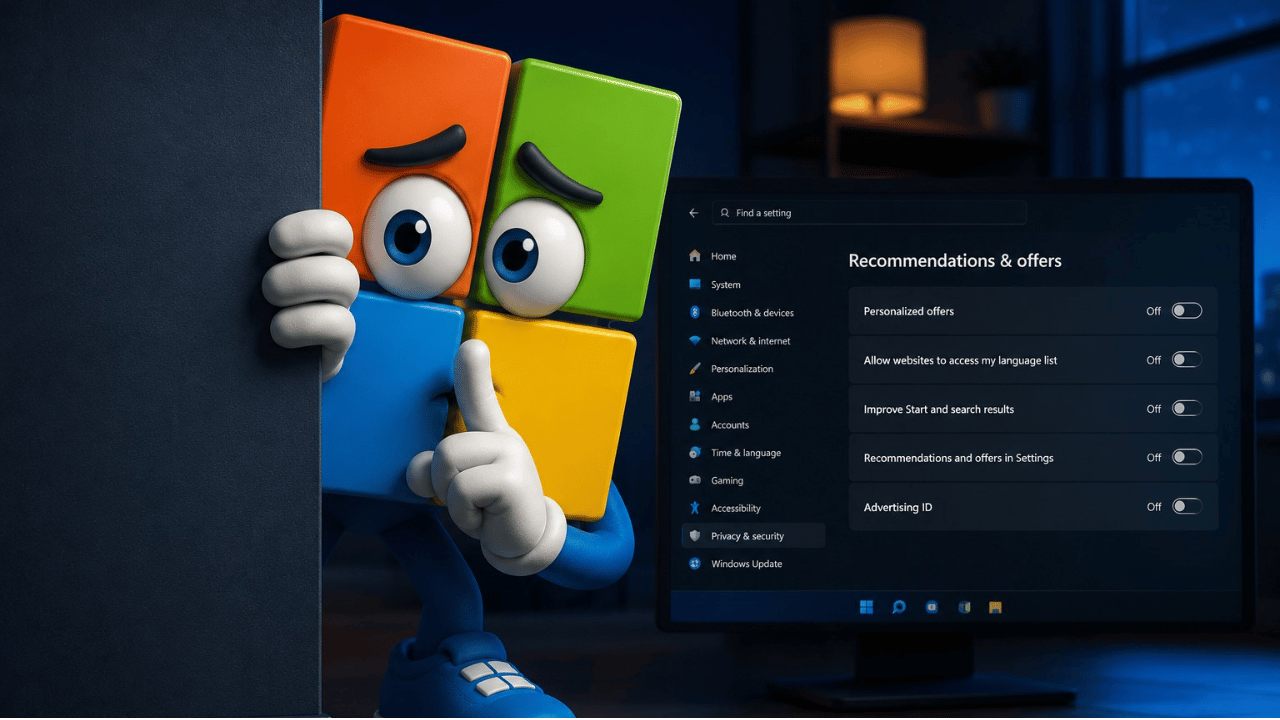
    Navigate to: Privacy & security > General

    On newer versions of Windows 11, Microsoft is replacing the General privacy page with a section called Recommendations & offers, so the wording you see may depend on your Windows 11 version.

    Here you’ll find several privacy and personalization controls, including:

    • Personalized offers
    • Allow websites to access my language list
    • Improve Start and search results
    • Recommendations and offers in Settings
    • Advertising ID

    If you don’t want these personalization features, you can switch them Off.

    What does Advertising ID do in Windows 11?

    This is the setting worth paying particular attention to.

    Windows creates a unique Advertising ID for each user on a device. Supported apps can access this identifier, and app developers and advertising networks can associate information they collect with the ID to provide more relevant advertising and personalized experiences.

    In simple terms, it gives supported Windows apps an identifier that can be used as part of ad personalization.

    If you’d rather not allow that, turn Advertising ID off.

    There’s an important distinction, however.

    Disabling Advertising ID does not remove ads from Windows 11.

    It prevents supported apps from using this particular Windows advertising identifier for personalization. Apps, websites, Microsoft services, and third parties can still use other advertising systems.

    2. Reduce Recommendations in the Windows 11 Start Menu

    The Start menu is another area worth checking if you want a less personalized Windows experience.

    Open Settings > Personalization > Start

    Windows 11 provides several controls that determine what appears in and around the Recommended section of Start.

    Depending on your Windows 11 version, you’ll see options related to recently added apps, frequently used apps, recently opened items, recommendations, and other personalized content.

    Go through the available options and turn off the recommendations you don’t want Windows displaying.

    Don’t expect the entire Recommended section to necessarily disappear. Some of these controls determine what Windows puts into the section rather than removing the section itself.

    If you don’t use Windows recommendations, disabling these options can make Start feel cleaner and less cluttered.

    3. Turn Off Lock Screen Tips and Suggested Content

    Your Windows 11 Lock screen can also display more than just your wallpaper and the time.

    Go to Settings > Personalization > Lock screen

    If you use Picture or Slideshow, check for the option:

    Get fun facts, tips, tricks, and more on your lock screen

    Turn it Off if you don’t want Microsoft providing this additional content on your Lock screen.

    There’s another detail worth knowing about Windows Spotlight.

    Spotlight automatically rotates images supplied by Microsoft and can display additional Windows information, tips, tricks, and notifications.

    If you prefer a simple Lock screen, select Picture instead of Windows Spotlight and choose your own wallpaper. Then disable the additional tips and content option if it’s available.

    4. Disable Windows 11 Tips and Suggestions

    Windows can also surface suggestions through its notification experience.

    Navigate to Settings > System > Notifications

    Scroll down and expand Additional settings.

    Depending on your Windows 11 version, you may find options such as:

    Get tips and suggestions when using Windows

    Show the Windows welcome experience after updates and when signed in to show what’s new and suggested

    and

    Suggest ways to get the most out of Windows and finish setting up this device

    If you don’t find these suggestions useful, disable the available options.

    These aren’t necessarily conventional advertisements. They’re better described as Windows suggestions, recommendations, and setup prompts.

    Still, if you’re trying to create a cleaner Windows 11 experience with fewer unsolicited recommendations, they’re worth checking.

    5. Turn Off Device Usage Personalization

    This is one of the more interesting Windows 11 personalization settings because it’s easy to enable during setup and then forget about.

    Navigate to Settings > Personalization > Device usage

    Windows asks you to specify how you use your computer and provides categories such as:

    • Development
    • Gaming
    • Family
    • Creativity
    • School
    • Entertainment
    • Business

    These choices aren’t just labels.

    Microsoft says selecting Device usage options can result in tailored tips, recommendations, and personalized ads.

    For example, selecting Gaming can lead to an Xbox Game Pass trial or gaming-related app and website suggestions.

    Selecting Business can result in a Microsoft 365 Business trial offer.

    Similarly, other categories can influence the recommendations Windows provides.

    If you don’t want Windows personalizing its experience based on these usage categories, switch the enabled Device usage options Off.

    Will Turning These Settings Off Remove All Ads From Windows 11?

    No.

    That’s probably the most important thing to understand before changing these settings.

    Windows 11 doesn’t have a single master “Disable all ads” switch.

    Turning off the settings above can reduce personalized advertising, recommendations, tips, offers, and promotional content, but it won’t block every advertisement you might encounter.

    For example, disabling Windows Advertising ID doesn’t prevent a website from using cookies or other technologies for interest-based advertising. Third-party apps can also have their own advertising and privacy systems.

    Think of these settings as controls over specific Windows personalization and recommendation features rather than a system-wide ad blocker.

    Should You Disable Advertising ID in Windows 11?

    If you don’t care about receiving personalized ads inside supported Windows apps, there’s little reason to keep Advertising ID enabled.

    Turning it off doesn’t stop apps from working, and it doesn’t prevent you from seeing advertisements altogether. Instead, you’re telling Windows apps not to use that particular identifier to personalize advertising.

    The other settings are more subjective.

    You might enjoy Windows Spotlight, Start recommendations, or Windows tips. In that case, there’s nothing inherently wrong with leaving them enabled.

    But if you prefer a cleaner Windows experience with less personalization and fewer Microsoft recommendations, disabling the five areas covered above is a good place to start.

    Frequently Asked Questions

    Does Windows 11 have an Advertising ID?

    Yes. Windows 11 generates a unique Advertising ID for each user on a device. Supported apps can use the identifier for purposes that include providing more relevant advertising and personalized experiences.

    How do I turn off personalized ads in Windows 11?

    Open Settings > Privacy & security > General or Recommendations & offers, depending on your Windows 11 version, and turn off Advertising ID. You can also review the other personalization and recommendation options available on the same page.

    Does disabling Advertising ID stop all Windows 11 ads?

    No. Disabling Advertising ID prevents supported apps from using that particular Windows identifier for personalized advertising. It doesn’t block all ads, website advertising, cookies, or advertising systems used independently by third-party apps.

    Why do I see recommendations in Windows 11?

    Windows includes several recommendation systems. Content can appear through Start, Settings, notifications, Device usage personalization, Windows Spotlight, and other Microsoft experiences. Which recommendations you see depends on your settings and Windows version.

    Can Device Usage settings be used for ads?

    Yes. Microsoft states that selecting Device usage categories can result in tailored tips, recommendations, and personalized ads. If you don’t want this personalization, go to Settings > Personalization > Device usage and turn off the categories you’ve selected.

    Final Thoughts

    Windows 11 gives you considerably more control over recommendations and advertising personalization than you might initially realize—the problem is that those controls aren’t located in one place.

    You’ll find them scattered throughout Privacy & security, Personalization, Start, Lock screen, Notifications, and Device usage.

    If personalized advertising doesn’t interest you, start by disabling Advertising ID. Then work through the remaining settings and decide which Windows recommendations and promotional experiences are actually useful to you.

    You don’t have to disable everything. The goal is simply to make Windows behave the way you want it to.

    Share. Facebook Twitter Pinterest LinkedIn Tumblr Email
    Previous ArticleWindows PC Running Slow? Here’s How to Clear RAM Cache
    Viney Dhiman
    • Website
    • Facebook
    • X (Twitter)
    • Instagram
    • LinkedIn

    Viney Dhiman, the mind behind GeekerMag, is a seasoned content writer with over 12 years of experience. Specializing in simplifying complex tech concepts, he covers Windows OS, Android, iOS, web apps, and product reviews. His work can be found on popular tech websites like Gizmodo and The Verge, and he has been interviewed by the Microsoft Edge team.

    Related Posts

    How to Install Windows 11 25H2 on Unsupported PC (2026 Guide)
    Windows

    How to Install Windows 11 25H2 on Unsupported PC (2026 Guide)

    March 2, 2026
    How to Check if Your PC has the New Windows UEFI CA 2023 Secure Boot Certificate
    Windows

    How to Check if Your PC has the New Windows UEFI CA 2023 Secure Boot Certificate

    February 17, 2026
    How to Fix Slow Internet on Windows 11 (Change DNS Settings)
    Windows

    How to Fix Slow Wifi- Internet Speed on Windows 11 (2026 Guide)

    January 12, 2026
    Add A Comment
    Leave A Reply Cancel Reply

    This site uses Akismet to reduce spam. Learn how your comment data is processed.

    Trending Posts
    Windows 11 Is Tracking You for Ads? Disable These 5 Settings

    Windows 11 Is Tracking You for Ads? Disable These 5 Settings

    August 19, 2026
    Chrome Downloading AI Files? How to Find & Delete Them

    Chrome Downloading AI Files? How to Find & Delete Them

    August 9, 2026
    How to Install Windows 11 25H2 on Unsupported PC (2026 Guide)

    How to Install Windows 11 25H2 on Unsupported PC (2026 Guide)

    March 2, 2026
    How to Check if Your PC has the New Windows UEFI CA 2023 Secure Boot Certificate

    How to Check if Your PC has the New Windows UEFI CA 2023 Secure Boot Certificate

    February 17, 2026
    Stay In Touch
    • Facebook
    • YouTube
    • TikTok
    • WhatsApp
    • Twitter
    • Instagram
    Most Popular
    Fix - Lenovo Camera Not Working in Windows 11/10 in (2024)

    Fix – Lenovo Camera Not Working in Windows 11/10 in (2024)

    January 10, 2024
    How to Disable Incognito Mode of Chrome in Windows 10 - 2020

    How to Turn Off and Disable Google Chrome Incognito Mode in Windows 11/10

    February 10, 2020
    Error Code: DLG_FLAGS_INVALID_CA (Explained | Resolved)

    Fix – Error Code: DLG_FLAGS_INVALID_CA in Windows 11/10 (Edge and other )

    January 10, 2024
    Our Picks
    Windows 11 Is Tracking You for Ads? Disable These 5 Settings

    Windows 11 Is Tracking You for Ads? Disable These 5 Settings

    August 19, 2026
    Windows PC Running Slow? Here’s How to Clear RAM Cache

    Windows PC Running Slow? Here’s How to Clear RAM Cache

    August 10, 2026
    Chrome Downloading AI Files? How to Find & Delete Them

    Chrome Downloading AI Files? How to Find & Delete Them

    August 9, 2026

    Subscribe to Updates

    Get the latest creative news from FooBar about art, design and business.

    Facebook X (Twitter) Instagram Pinterest WhatsApp Telegram
    • Privacy Policy
    • TOC
    • Corrections Policy
    • Editorial Guidelines
    • Fact Checking Policy
    © 2026 Geeker Mag. | Maintained by Viney Dhiman.

    Type above and press Enter to search. Press Esc to cancel.

    Powered by
    ►
    Necessary cookies enable essential site features like secure log-ins and consent preference adjustments. They do not store personal data.
    None
    ►
    Functional cookies support features like content sharing on social media, collecting feedback, and enabling third-party tools.
    None
    ►
    Analytical cookies track visitor interactions, providing insights on metrics like visitor count, bounce rate, and traffic sources.
    None
    ►
    Advertisement cookies deliver personalized ads based on your previous visits and analyze the effectiveness of ad campaigns.
    None
    ►
    Unclassified cookies are cookies that we are in the process of classifying, together with the providers of individual cookies.
    None
    Powered by
    Ad Blocker Enabled!
    Ad Blocker Enabled!
    Our website is made possible by displaying online advertisements to our visitors. Please support us by disabling your Ad Blocker.